Last Updated: July 2026
You don’t need a separate device to get your laptop online when there’s no WiFi around — the phone already in your pocket can do the job. Here’s exactly how to turn on your phone’s hotspot, the lesser-known trick that saves battery and improves security, and what to do when it stops working.
What a Mobile Hotspot Actually Does
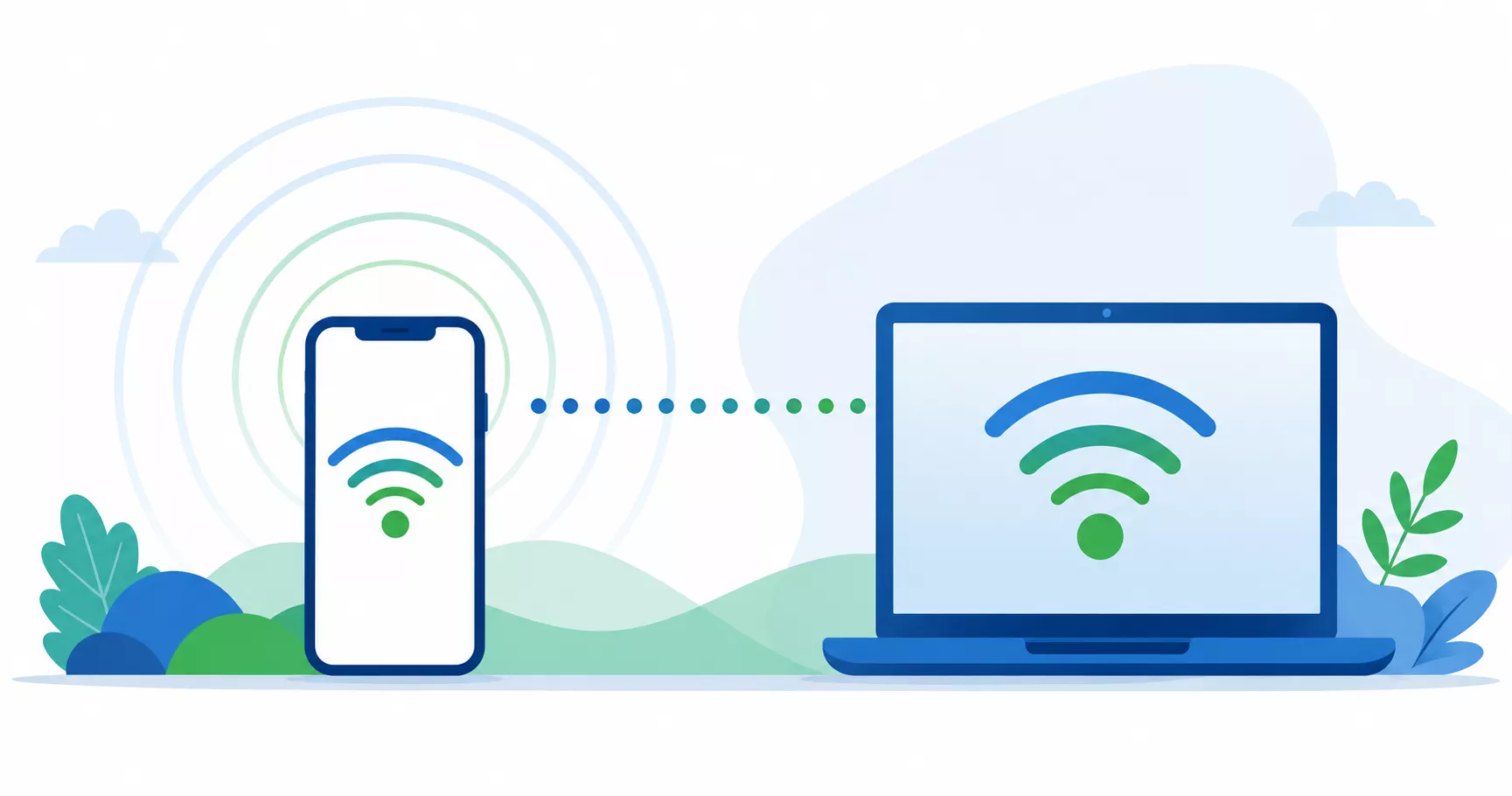
A mobile hotspot turns your phone into a portable WiFi router — it uses your cellular data connection (4G or 5G) to share it with other devices like a laptop, tablet, or second phone. This is also called “tethering.” The key difference from regular WiFi: instead of tapping into a fixed broadband connection at home or at a business, your hotspot uses your phone’s data plan.
Before You Start: What You Need
- A cellular data plan that includes hotspot/tethering. Most unlimited plans from Verizon, AT&T, and T-Mobile include this, though the amount of full-speed hotspot data varies by tier (typically 15GB–100GB/month before slowing down). Some basic or prepaid plans don’t include tethering at all — check your specific plan if you’re unsure.
- Active mobile data turned on, since the hotspot shares your cellular connection.
- Reasonable signal strength — a weak cellular signal on your phone means a weak hotspot connection for whoever’s using it.
How to Set Up a Hotspot on iPhone
Step 1 — Open Settings → tap Personal Hotspot (or Settings → Cellular → Personal Hotspot on some iOS versions).
Step 2 — Toggle Allow Others to Join on. You can also enable it directly from Control Center by tapping the hotspot icon.
Step 3 — Tap Wi-Fi Password to view or change it. Apple requires a minimum of 8 characters, ASCII only.
Step 4 — On the device you want to connect, go to its WiFi settings, select your iPhone’s name from the list, and enter the password.
Bonus tip: Since iOS 13, your hotspot stays active even with your iPhone’s screen locked — you don’t need to keep the screen on for connected devices to stay online.
How to Set Up a Hotspot on Android
Steps vary slightly by manufacturer, but the general path is similar:
Step 1 — Open Settings → Network & Internet (stock Android) or Connections (Samsung).
Step 2 — Tap Hotspot & Tethering or Mobile Hotspot.
Step 3 — Toggle the hotspot on.
Step 4 — Set a network name (SSID) and create a strong password.
Step 5 — On the connecting device, select your phone’s hotspot name from available WiFi networks and enter the password.
Band tip: Many Android phones let you choose between 2.4 GHz (longer range, more crowded, slower) and 5 GHz (shorter range, faster). If you’re unsure which to pick, the default setting works well for most situations.
The Alternative Most People Don’t Know About: USB Tethering
Instead of broadcasting WiFi, you can connect your phone directly to a laptop with a USB cable and share the connection that way. This works almost identically on iPhone and Android:
On iPhone: Enable Personal Hotspot as above, then connect your iPhone to your computer with a Lightning or USB-C cable. Tap Trust This Computer if prompted — your computer should automatically detect it as a network interface.
On Android: Connect via USB cable, then enable USB tethering in your hotspot/tethering settings menu.
Why this is worth knowing: USB tethering is generally more battery-efficient than broadcasting a WiFi signal (since your phone is typically charging while connected via cable anyway), and it’s inherently more secure than an open WiFi hotspot, since there’s no wireless signal for anyone nearby to intercept or attempt to join. If you’re working from a laptop at a desk or in a car with a charging cable handy, USB tethering is often the better choice over a WiFi hotspot.
Bluetooth tethering is also available on both platforms as a third option — generally slower than WiFi or USB, but useful for light tasks like basic browsing or messaging when you want to conserve battery further.
Managing Data and Battery
Monitor your hotspot data specifically. Hotspot/tethering data usually comes from a separate, smaller allowance within your overall plan — check your carrier’s app (My Verizon, myAT&T, T-Mobile app) to see exactly how much hotspot data remains in your billing cycle, since it’s tracked differently from your regular phone data usage.
Keep your phone plugged in during extended hotspot use. Running a hotspot is one of the most battery-intensive things a phone can do — for desk or car use, always connect to power if you’ll be tethering for a while.
Limit connected devices if speeds feel slow. Most phones cap how many devices can connect simultaneously, and having several connected at once can noticeably slow down each individual connection.
Securing Your Hotspot
- Use a strong, unique password — avoid anything simple or guessable
- Turn off the hotspot when you’re not using it — this prevents any unauthorized connection attempts and saves battery
- Only share your password with people you trust — anyone with it can use your data plan
- Both platforms use WPA2/WPA3 encryption by default, so you generally don’t need to configure encryption manually
Troubleshooting: Hotspot Won’t Turn On or Connect
Check that mobile data is on. Your hotspot needs an active cellular data connection to share — if mobile data is off, the hotspot has nothing to broadcast.
Confirm your plan includes tethering. Some carrier plans block or restrict hotspot functionality specifically, separate from your regular data allowance. Check your plan details or contact your carrier if the toggle won’t activate.
Toggle it off and back on. A simple restart of the hotspot feature itself resolves many temporary glitches.
Restart your phone. If toggling doesn’t help, a full restart often clears whatever is blocking the feature.
Check for a carrier settings update (specifically for iPhone). Go to Settings → General → About and wait about 30 seconds — if an update is available, a prompt will appear. Some hotspot issues are tied to carrier settings that need to be refreshed after an iOS update.
Verify the password matches exactly on the connecting device — a common and easy-to-miss mistake.
Move to an area with better signal. Weak cellular reception on your phone directly translates to a weak or unstable hotspot connection.
“Personal Hotspot” greyed out on iPhone: This is a known issue some users encounter after iOS updates. Try toggling Cellular Data off and back on (Settings → Cellular → Cellular Data), restarting your phone, or checking for a carrier settings update as described above.
Frequently Asked Questions
Does using my phone as a hotspot cost extra? It depends on your plan. Many unlimited plans include a hotspot data allowance at no extra charge, but some prepaid or basic plans require an add-on or don’t support tethering at all — check your specific carrier plan.
Can I use my phone as a hotspot without a data plan? No. Your phone needs an active cellular data connection to share with other devices — without it, there’s nothing for the hotspot to broadcast.
Why is my hotspot connection so slow? Usually one of three causes: weak cellular signal on your phone, too many devices connected simultaneously, or you’ve exhausted your plan’s full-speed hotspot data allowance and been throttled to a slower speed for the rest of your billing cycle.
Is USB tethering really more secure than WiFi hotspot? Yes, generally. A wired USB connection has no wireless signal that could potentially be intercepted or targeted, unlike a broadcast WiFi hotspot, even a password-protected one.
Can I use my hotspot with the phone screen off? Yes, on most modern phones (including iPhones since iOS 13) — the hotspot stays active with the screen locked, so you don’t need to keep the display on for connected devices to remain online.
How many devices can connect to my hotspot at once? This varies by phone model and carrier, typically ranging from 5 to 15 devices, though performance degrades as more devices connect simultaneously.
Final Thoughts
Your phone’s built-in hotspot feature is one of the most underused tools already sitting in your pocket — genuinely useful whether your home internet is down, you’re traveling, or you just need a quick backup connection. For most situations, a WiFi hotspot is the simplest option, but keep USB tethering in mind when you want better battery life and a bit more security, especially at a desk or in a car where a cable is easy to use. If you’d rather rely on free public WiFi instead of your own data plan when possible, check our guide to free WiFi hotspot locations for the best spots nationwide.
This article is for informational purposes only. Menu labels, exact steps, and hotspot data allowances vary by device model, manufacturer, and carrier plan — check your specific device settings and carrier plan details for the most accurate current information.

Hotspot Research Team covers free and low-cost internet assistance programs across the United States, including Lifeline, government-supported hotspot devices, and related benefits like SNAP, Medicaid, and SSI. The team focuses on researching official government sources and verified provider information to deliver clear, accurate, and up-to-date guidance for low-income households, students, and remote workers seeking affordable connectivity. Every article is reviewed and updated regularly to reflect current eligibility rules and program changes.